
Client panel
This is what it looks like inside
Screens from the working system: the page editor, phone use and two ways of working.
Editor
Structure, preview and settings side by side
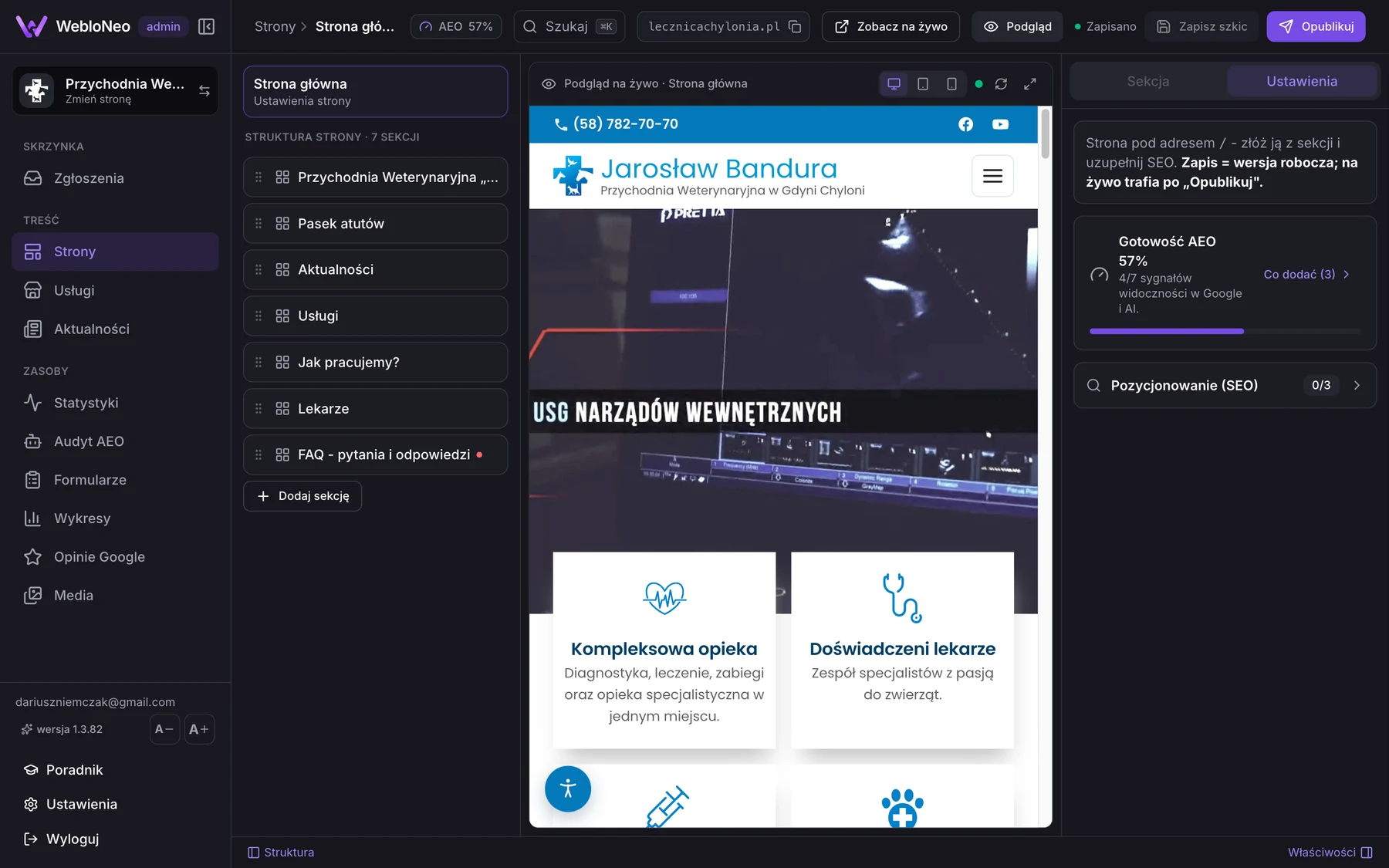
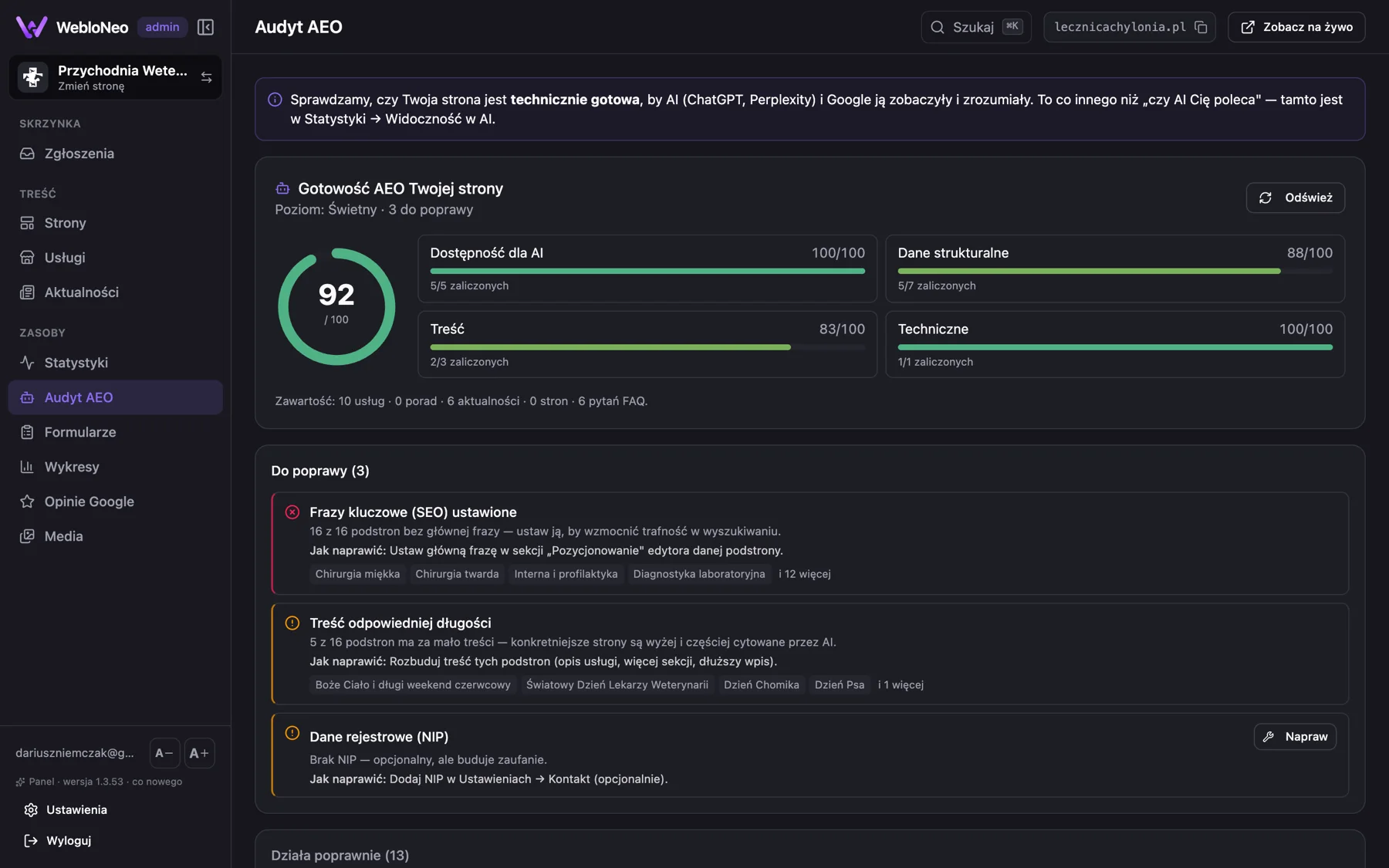
On the left the page broken into sections, in the middle the preview, on the right the settings of the selected section and an AEO readiness indicator. Clicking a section in the list highlights it in the preview, so you always know what you are changing.
Saving creates a draft. The change goes live only after you click publish.
From your phone
The whole site fits in your pocket
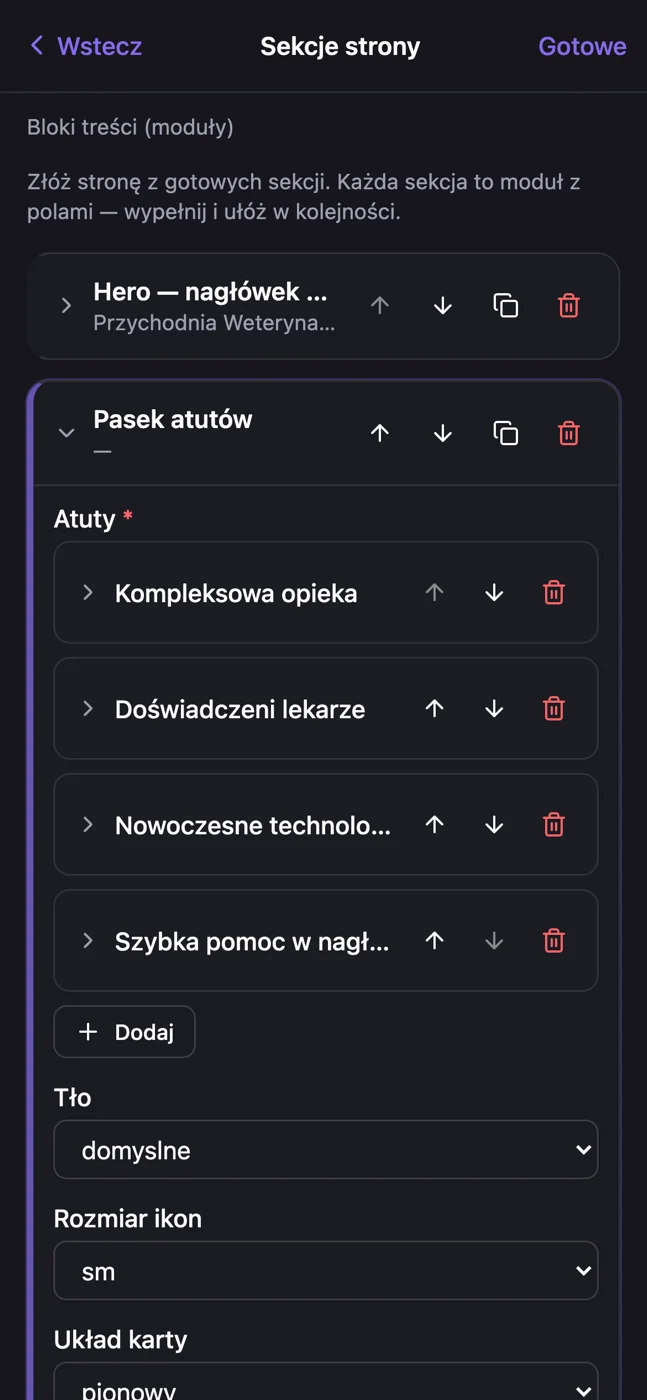
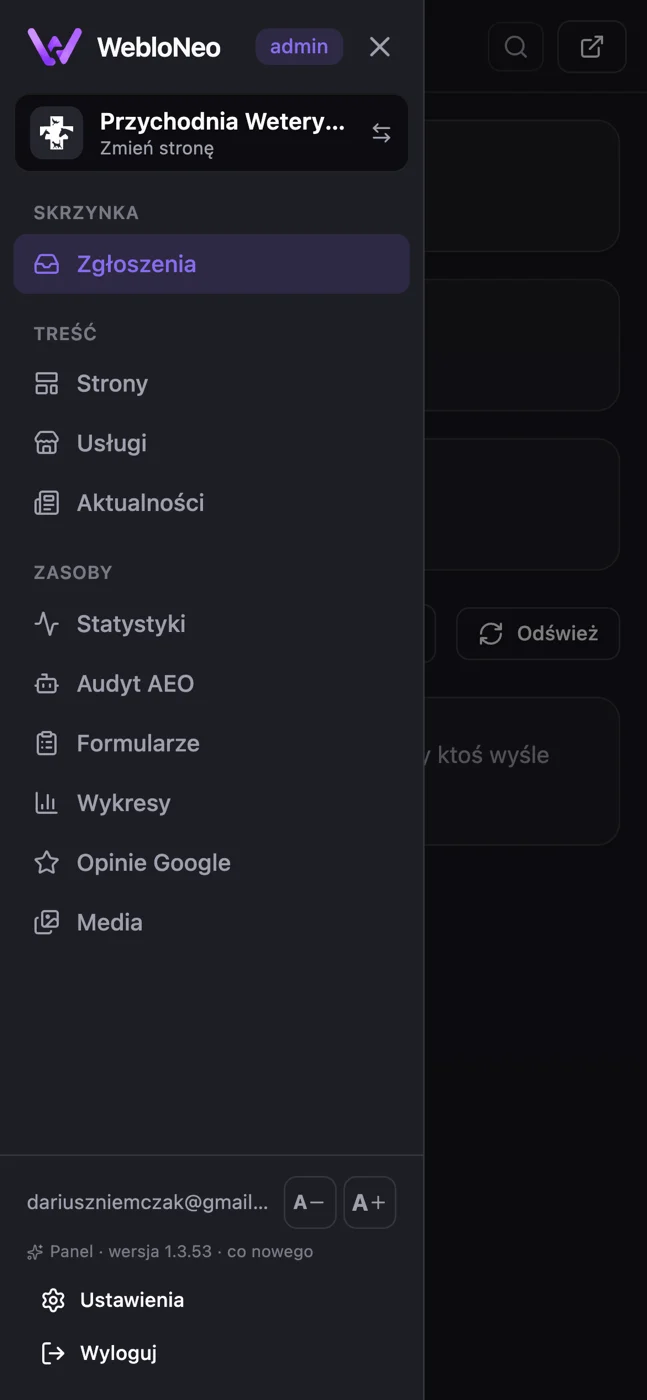
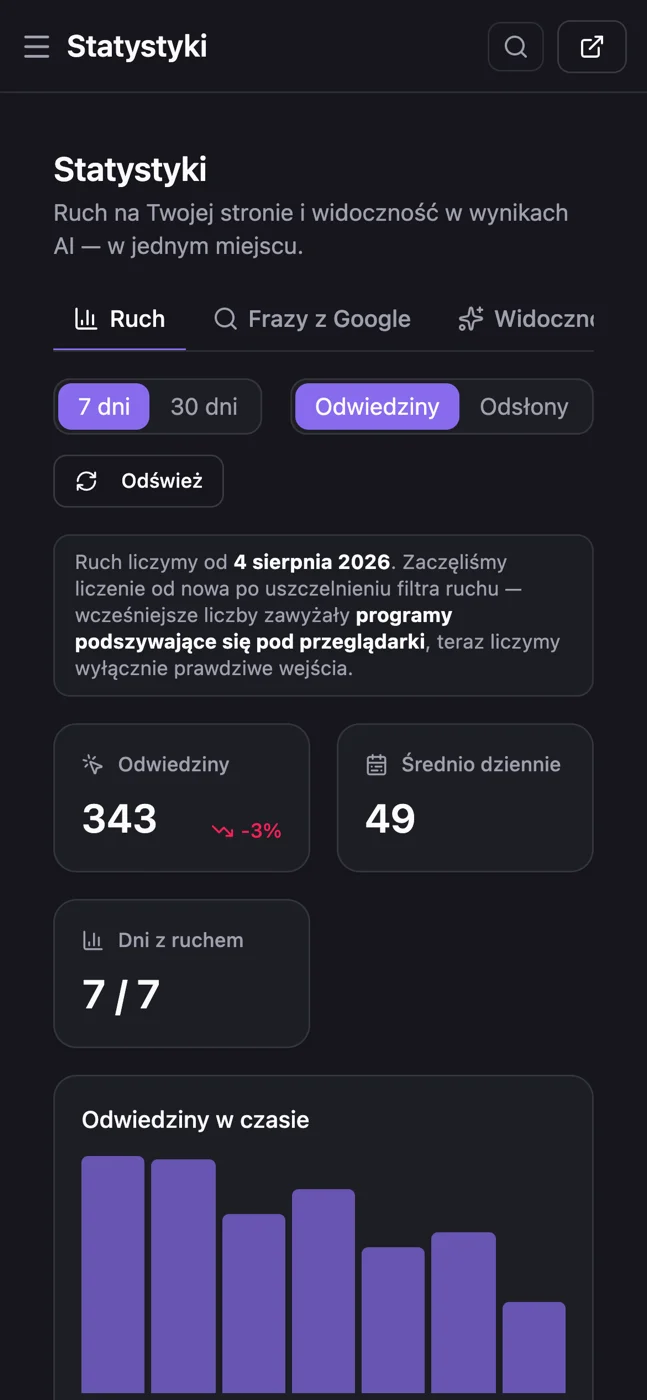
The panel was built for a small screen from the start, not adapted later. From a phone you can reorder sections, correct a price and check statistics, standing on a building site or in a surgery.
In classic page builders, editing from a phone tends to be an ordeal: columns do not fit the screen, side panels cover the content and dragging with a finger loses the drop. The most common advice then is: fix it when you are back at a computer.
Two ways of working
Laying out a page and writing text are two different jobs
A home page or an offer page is built from ready sections that you reorder and fill in with fields. The design cannot fall apart there, because the system owns the layout.
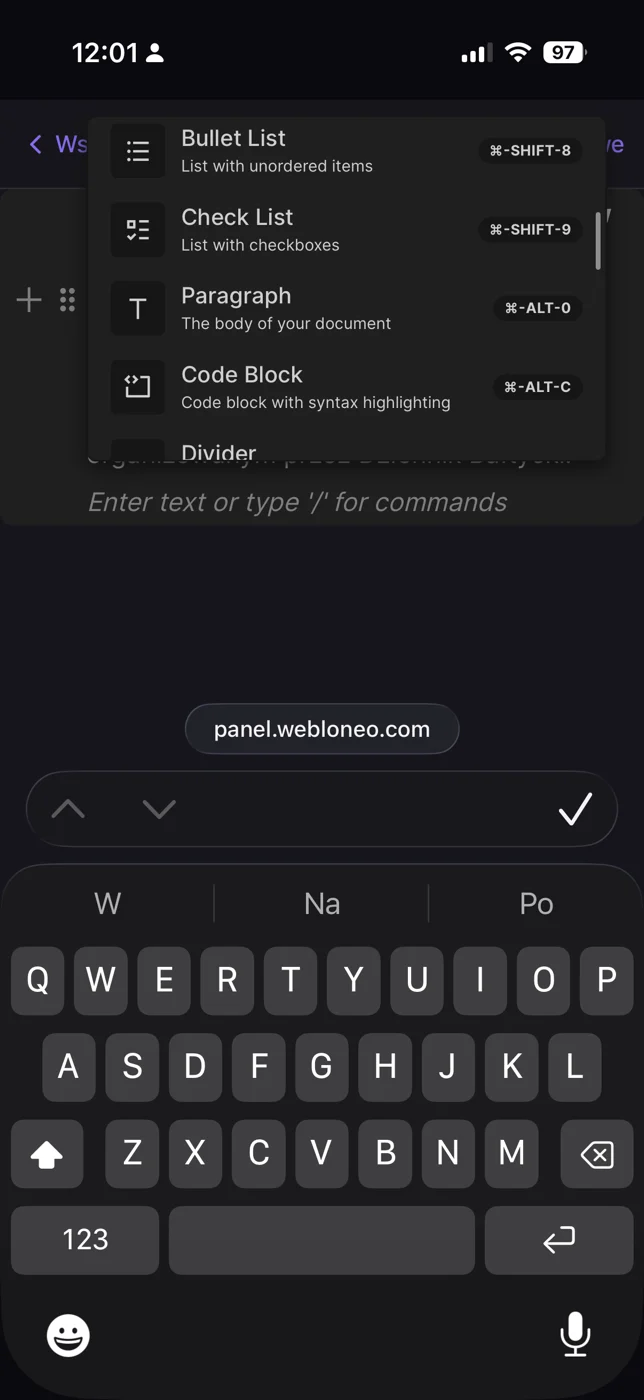
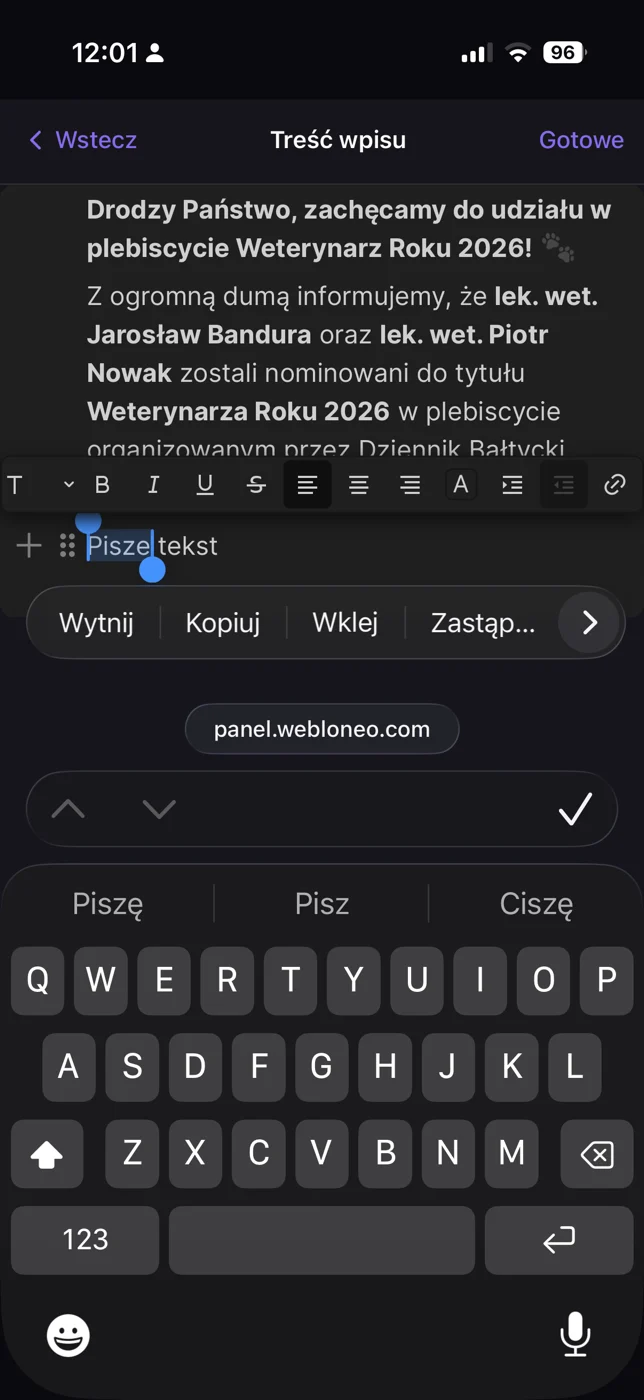
You write a news post or a guide in an ordinary text editor. Typing a slash opens the block list: heading, list, quote, table, image. Selecting a word shows the formatting bar. It works the same on a computer and on a phone.
More screens
Click to enlarge.
Want to click through it yourself?
We will arrange a panel demo on a live deployment.